

 Set up docs MCP
This guide covers how backups work in ClickHouse Cloud, what options you have to configure backups for your service, and how to restore from a backup.
Prerequisites
- You have read “How backups work in ClickHouse Cloud” (Feature overview page)
Backup status list
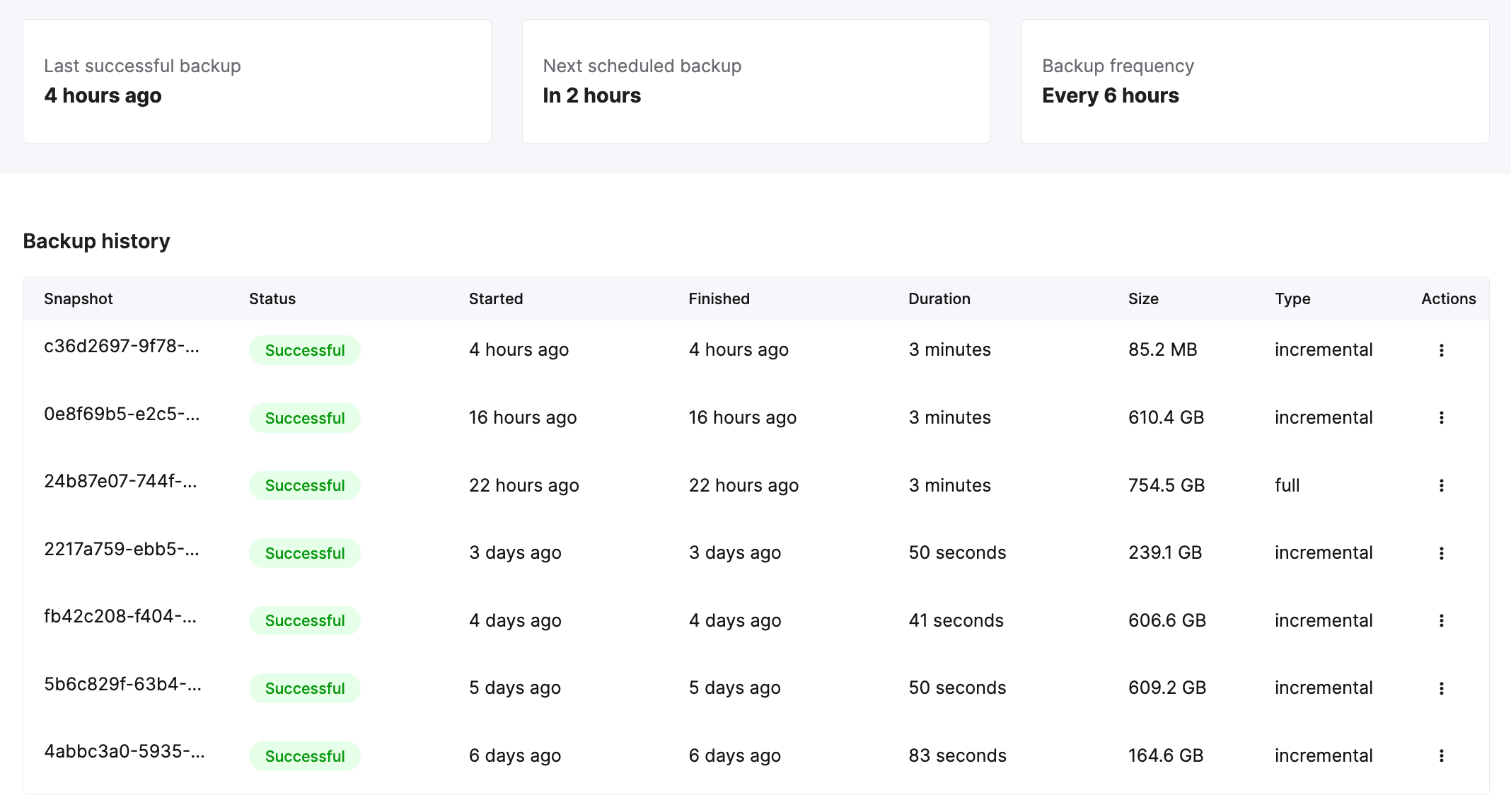
Backups run according to the schedule configured for your service, whether that is the default daily schedule or a custom schedule you have picked. All available backups can be viewed from the Backups tab of the service. From here, you can see the status of the backup, the duration, as well as the size of the backup. You can also restore a specific backup using the Actions column.
Understanding backup cost
Unless configured with a different schedule, services are backed up once every 24 hours, and each backup is retained for 24 hours. The ability to configure backup schedules varies by service and plan. Choosing a schedule that requires retaining more data, or causes more frequent backups can cause additional storage charges for backups.
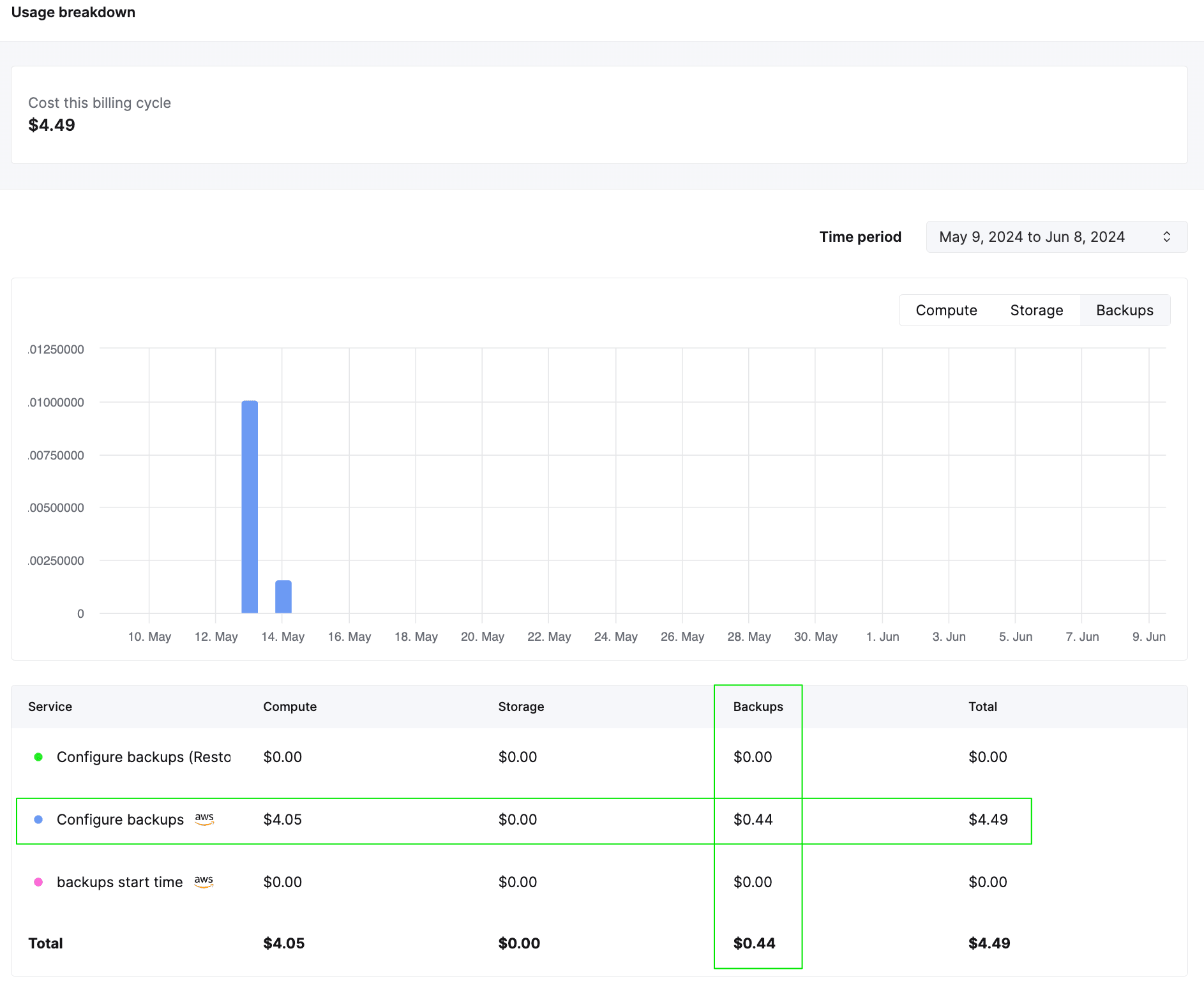
To understand the backup cost, you can view the backup cost per service from the usage screen (as shown below). Once you have backups running for a few days with a customized schedule, you can get an idea of the cost and extrapolate to get the monthly cost for backups.
Estimating the total cost for your backups requires you to set a schedule. Before setting a schedule, you can use the pricing calculator to obtain a monthly cost estimate by providing the following inputs:
- Size of the full and incremental backups
- Desired backup frequency
- Desired backup retention
- Cloud provider and region
Restore a backup
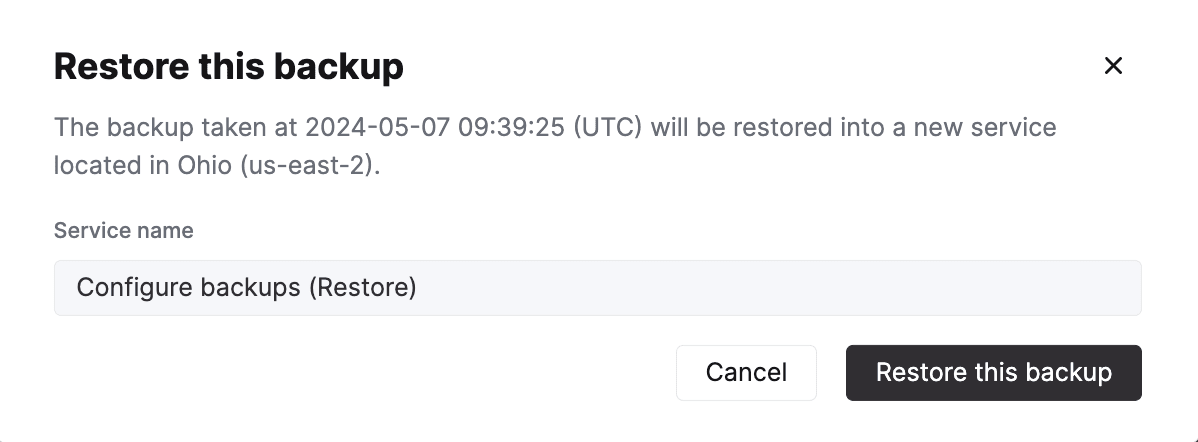
Backups are restored to a new ClickHouse Cloud service, not to the existing service from which the backup was taken.
After clicking on the Restore backup icon, you can specify the service name of the new service that will be created, and then restore this backup:
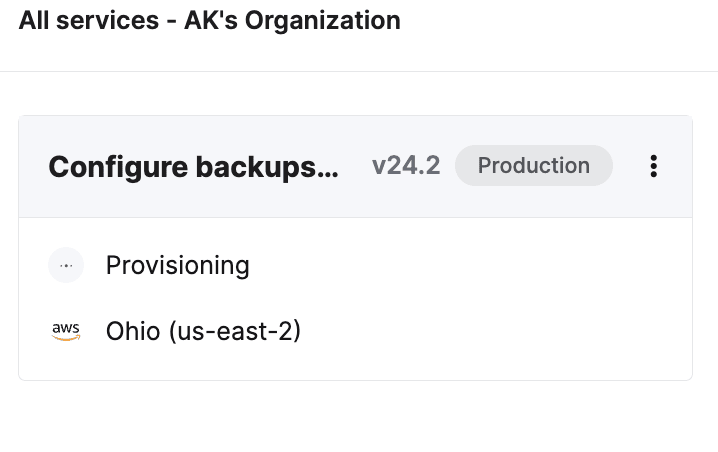
The new service will show in the services list as Provisioning until it is ready:
Working with your restored service
After a backup has been restored, you will now have two similar services: the original service that needed to be restored, and a new restored service that has been restored from a backup of the original.
Once the backup restore is complete, you should do one of the following:
- Use the new restored service and remove the original service.
- Migrate data from the new restored service back to the original service and remove the new restored service.
Use the new restored service
To use the new service, perform these steps:
- Verify that the new service has the IP Access List entries required for your use case.
- Verify that the new service contains the data that you need.
- Remove the original service.
Migrate data from the newly restored service back to the original service
Suppose you can’t work with the newly restored service for some reason, for example, if you still have users or applications that connect to the existing service. You may decide to migrate the newly restored data into the original service. The migration can be accomplished by following these steps:
Allow remote access to the newly restored service
The new service should be restored from a backup with the same IP Allow List as the original service. This is required as connections won’t be allowed to other ClickHouse Cloud services unless you had allowed access from Anywhere. Modify the allow list and allow access from Anywhere temporarily. See the IP Access List docs for details.
On the newly restored ClickHouse service (the system that hosts the restored data)
Add a read only user that can read the source table (db.table in this example):
CREATE USER exporter
IDENTIFIED WITH SHA256_PASSWORD BY 'password-here'
SETTINGS readonly = 1;
GRANT SELECT ON db.table TO exporter;Copy the table definition:
SELECT create_table_query
FROM system.tables
WHERE database = 'db' AND table = 'table'
On the destination ClickHouse Cloud system (the one that had the damaged table):
Create the destination database:
CREATE DATABASE dbUsing the CREATE TABLE statement from the source, create the destination:
CREATE TABLE db.table ...
ENGINE = ReplicatedMergeTree
ORDER BY ...
Use the remoteSecure function to pull the data from the newly restored ClickHouse Cloud service into your original service:
INSERT INTO db.table
SELECT *
FROM remoteSecure('source-hostname', db, table, 'exporter', 'password-here')
After you have successfully inserted the data into your original service, make sure to verify the data in the service. You should also delete the new service once the data is verified.
Undeleting or undropping tables
The UNDROP command is supported in ClickHouse Cloud through Shared Catalog.
To prevent users from accidentally dropping tables, you can use GRANT statements to revoke permissions for the DROP TABLE command for a specific user or role.
Backup durations
Backup and restore durations vary significantly with data size, schema complexity, and the number of tables. The figures below are observations from internal testing and are not performance commitments.
In our testing, a backup of roughly 1 TB has taken about 10 to 15 minutes, and 20 TB about an hour. Larger datasets take proportionally longer, and backups of several hundred TB or more can take many hours, although there are economies of scale that help at larger sizes.
Restores are typically slower than the equivalent backup, particularly when the restore includes a long chain of incremental backups, since the full backup and all subsequent incremental backups in the chain must be applied. Restoring a very large service can take longer than a day.
Because durations depend heavily on your data, schema, and backup configuration, we strongly recommend testing a restore against your own data before relying on any target recovery time.
Configurable backups
If you want to set up a backups schedule different from the default backup schedule, take a look at Configurable Backups.
Export backups to your own cloud account
For users wanting to export backups to their own cloud account, see here.