

 Set up docs MCP
Spend alerts notify you when your organization’s usage reaches configured thresholds within a billing period, so you can avoid unexpected charges. They send notifications only; for thresholds that trigger automatic invoicing, see Payment thresholds.
Prerequisites
- You must have an Organization Admin or Billing Admin role to configure and view spend alerts.
How spend alerts work
- Alerts are based on gross usage within a billing period and reset at the start of each new cycle.
- Alerts fire every hour, based on the gross usage calculated at that time, so an alert fires after a threshold is exceeded.
Set up a spend alert
Open the spend alerts dialog
- Navigate to Organization > Billing in the ClickHouse Cloud console.
- Click Actions > Add spend alerts.

Configure and save the alert
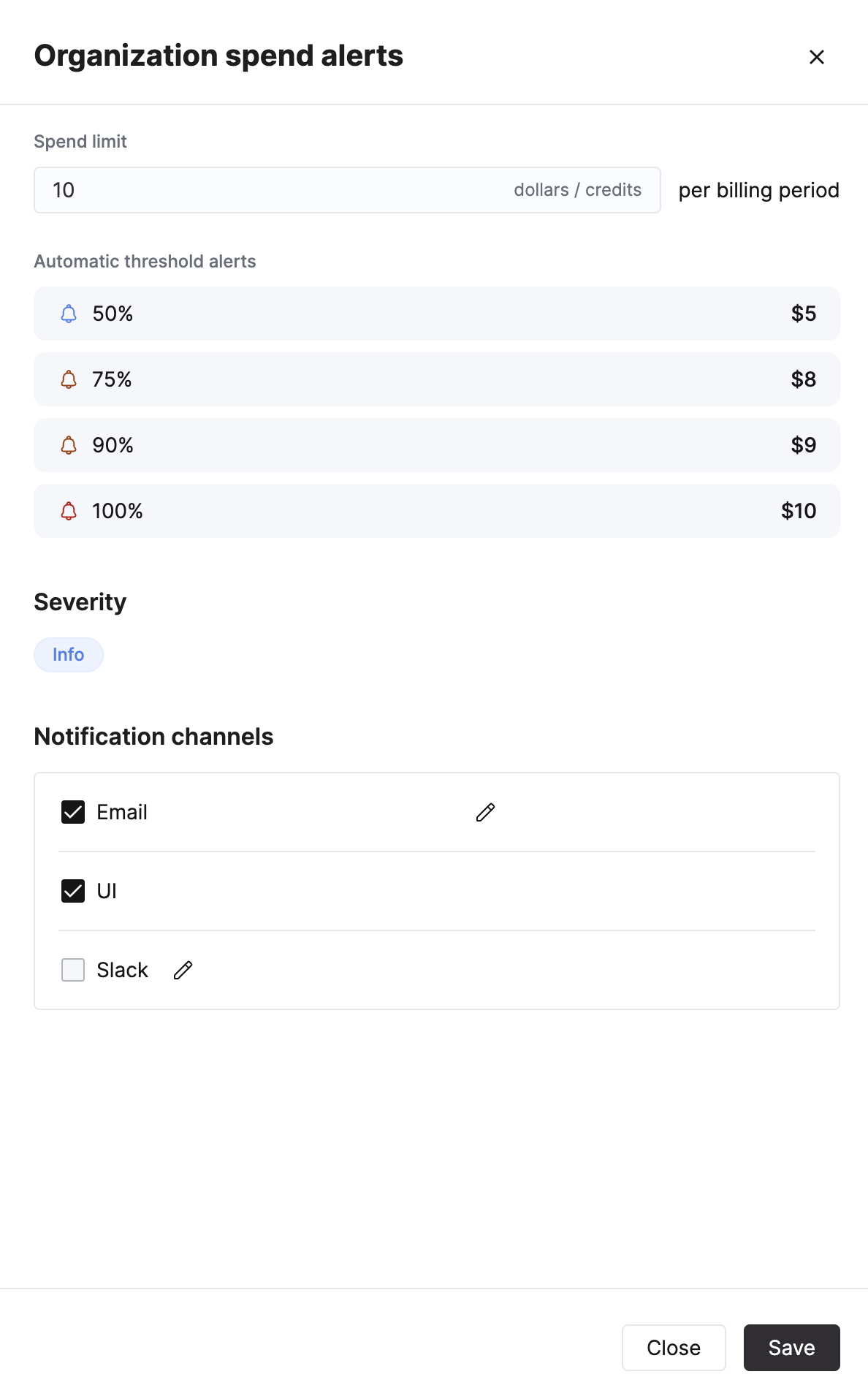
- Enter a spend alert amount in dollars or credits per billing period.
- Select your notification channels: Email, UI, and/or Slack.
- Click Save.
Automatic threshold alerts
Four alerts are automatically created and triggered based on your configured spend alert amount:
| Threshold | Trigger | Example ($10 alert) |
|---|---|---|
| 50% | Half of spend reached | $5 |
| 75% | Three-quarters of spend reached | $8 |
| 90% | Ninety percent of spend reached | $9 |
| 100% | Full spend reached | $10 |
Notification channels
| Channel | Description |
|---|---|
| Sends alerts to the configured email address. Click the edit icon to change the recipient. | |
| UI | Displays alerts in the ClickHouse Cloud console. |
| Slack | Sends alerts to a Slack channel. Click the edit icon to configure. |